How to manage notifications for your community members
Managing Notification Preferences
Notification Preferences lets community admins control how many notification emails members receive, and whether they get newsletters and digest emails.
Note: Notification Preferences are only available for customers on a paid plan. If you’re on a free plan, this section will not appear in your admin portal.
How to access Notification Preferences
Step 1:Log in to your Neki account as a community/company admin.
Step 2: After logging in, click on ‘Administration’ on the right side.

Step 3: In the left sidebar, under Account Setup, click Notification Preferences.
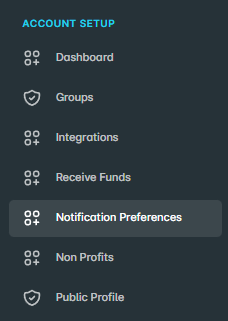
You’ll now see the Notification Preferences page with two sections:
- General Notifications
- Post Notification Limits

General Notifications
Use this section to control whether members receive newsletters and digest emails.
1.Receive Newsletter

- Toggle: “Receive Newsletter”
- When ON: Your community members can receive newsletters via email.
- When OFF: Newsletter emails will not be sent to your members.
Turn this on if you plan to send regular updates, campaigns, or news.
2.Receive Digest

- Toggle: “Receive Digest”
- When ON: Members can receive digest emails (summary emails of activity).
- When OFF: Digest emails will not be sent.
Use this when you want to send fewer emails but still keep people updated through periodic summaries.
Post Notification Limits
This section lets you cap how many post-related notification emails a member can receive each month.
1. Enable “Max Notifications per user”

- Find the toggle “Max Notifications per user”.
- Switch it ON to set monthly limits on the number of content-related notifications your community members receive.”
When this is ON, the limits you set in the fields below will apply to each member per month.
2.Set monthly limits by type
You’ll see three fields:
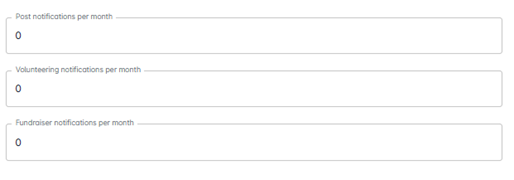
- Post notifications per month
- Maximum number of general post-related emails a member can receive in a month.
- Volunteering notifications per month
- Maximum number of volunteering-related notification emails per member per month.
- Fundraiser notifications per month
- Maximum number of fundraiser-related notification emails per member per month.
👉 How to set limits:
- Click inside each field.
- Enter a number (for example: 5, 10, 20).
- The number represents the maximum emails of that type a single member can receive in one month.
- If you set a value to 0, members will not receive that type of email.
Step 4:Save your changes

- After adjusting toggles and limits, go to the top-right of the page.
- Click the Save button.
- Your settings will now apply to all members in your community.
What your members experience
Based on your settings:
- Members will only receive newsletters and digests if those toggles are turned ON.
- Members will receive post-related, volunteering, and fundraiser emails up to the monthly limits you set.
- This keeps communication meaningful and prevents inbox overload.